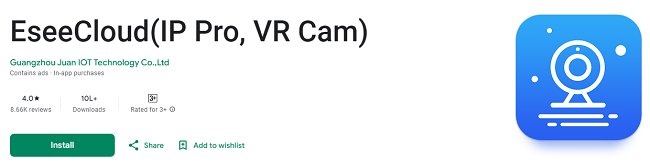
EseeCloud (IP Pro, VR Cam) - Download Best Video Surveillance App
In today's world, where security and surveillance are paramount, having an efficient and easy-to-use mobile video surveillance app is essential. EseeCloud (IP Pro, VR Cam) is a sophisticated, yet user-friendly mobile surveillance software designed for users who need real-time video streaming, remote monitoring, and instant access to security feeds. This app enables you to keep an eye on your home, office, or business from anywhere in the world using your smartphone or tablet. In this guide, we will walk you through the process of getting and using the EseeCloud app, ensuring that you can make the most out of its features and enhance your security system with ease.
What is EseeCloud?
EseeCloud is a powerful video surveillance software tailored for a variety of users, ranging from homeowners to businesses. The app supports real-time video monitoring and remote access to connected IP cameras, including VR cams. It provides users with a simple interface to view live video feeds, control security devices, and store footage for later review.
Key Features of EseeCloud:
Real-time video streaming: Watch live footage from your connected IP cameras.
Remote monitoring: Access video feeds from anywhere using your smartphone or tablet.
Multi-device support: EseeCloud works with various cameras, including IP cameras and VR cams.
Motion detection alerts: Get notified when motion is detected in your surveillance area.
Cloud storage: Store your video recordings securely in the cloud for easy access and retrieval.
With the EseeCloud app, you can create a robust security network without needing complex hardware or technical expertise.
How to Get the EseeCloud App?
Getting the EseeCloud app on your mobile device is simple and straightforward. The app is available for download on both iOS and Android platforms, making it accessible to a broad range of users.
Step 1: Download the EseeCloud App
For Android Users:
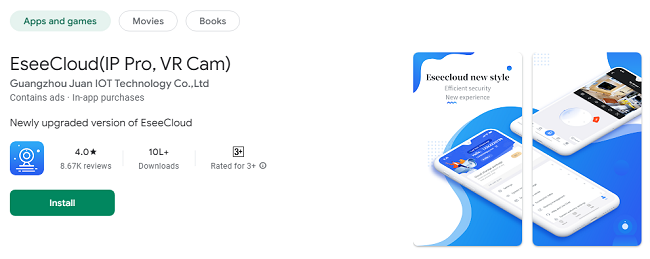
Open the Google Play Store on your Android device.
In the search bar, type "EseeCloud" or "EseeCloud IP Pro" or "EseeCloud VR Cam".
Find the official EseeCloud app from EseeCloud.
Tap on the Install button to begin the download process.
For iOS Users:
Open the App Store on your iPhone or iPad.
In the search bar, type "EseeCloud".
Look for the official EseeCloud app from EseeCloud.
Tap on Get to download and install the app on your device.
Step 2: Create an Account
After downloading the app, you’ll need to set up an account to use the full functionality of EseeCloud.
Open the app after installation.
You will be prompted to create a new account or log in if you already have an account.
If you’re new to the app, tap on the Register button.
Fill in the required fields, such as email address, username, and password.
Agree to the terms of service and privacy policy.
You may also be asked to verify your email address for added security.
After successful registration, you can log in with your credentials.
Step 3: Add Your Devices to the App
Once your account is set up, you can add your cameras or surveillance devices to the app.
Open the app and log in using your credentials.
From the main dashboard, click on the Add Device button or the "+" icon.
Choose the method of adding your device. You can either scan the QR code on your camera or enter the device’s ID manually.
QR Code Method: Most modern IP cameras come with a QR code located on the device. Use your phone’s camera to scan the code, and the app will automatically connect to your camera.
Manual Method: If you don’t have a QR code, you can enter the Device ID and password manually.
Once the device is successfully added, you’ll see it listed on your main dashboard.
How to Use the EseeCloud App?
Now that you have downloaded the app and added your devices, it's time to explore the different features of EseeCloud. The app is designed to be intuitive and user-friendly, so you don’t need to be a tech expert to navigate it.
1. Live Video Streaming
One of the main features of EseeCloud is the ability to view live video feeds from your connected cameras.
From the main dashboard, tap on the device you want to view.
You will immediately see a live video feed from the camera, with options to control the feed such as:
Fullscreen mode: Tap the screen to toggle full-screen mode for an immersive viewing experience.
Resolution settings: Adjust the video resolution based on your network speed to get the best streaming quality.
2. Motion Detection Alerts
EseeCloud supports motion detection, alerting you to any unusual activity within the surveillance area.
Go to the device settings within the app.
Enable motion detection and configure sensitivity settings.
You can choose to receive notifications whenever motion is detected, ensuring that you’re always aware of what’s happening around your property.
3. Remote Pan and Tilt (for PTZ Cameras)
For users with PTZ (Pan-Tilt-Zoom) cameras, EseeCloud provides remote control features.
Tap on the control icon on the live feed screen to begin controlling the camera.
You can remotely pan, tilt, and zoom the camera to get a better view of the area being monitored.
PTZ cameras can be particularly useful for large areas where you need to adjust the camera’s position remotely.
4. Cloud Storage and Video Playback
EseeCloud allows you to store your video recordings in the cloud, so you never have to worry about losing critical footage.
Enable cloud storage in the app settings and choose your preferred storage plan (usually a monthly or yearly subscription).
All video footage recorded by your cameras is automatically uploaded to the cloud for safe and easy access.
To view recorded footage, go to the Playback section of the app, where you can search for videos by date and time.
Cloud storage ensures that even if your camera is damaged or your SD card is corrupted, your footage remains safe.
5. Two-Way Audio Communication
If your camera supports two-way audio, you can communicate with people near the camera via the EseeCloud app.
Tap on the microphone icon to start speaking through your camera’s speaker.
You can also listen to sounds from the camera’s microphone by tapping the speaker icon.
6. Managing Multiple Devices
For users with several cameras or security devices, EseeCloud offers seamless management.
On the main dashboard, you’ll see a list of all your connected devices.
You can view live feeds from multiple cameras simultaneously or choose specific cameras to monitor.
You can organize your devices into different groups, such as “Front Yard,” “Office,” or “Warehouse,” to easily manage multiple locations.
Tips for Optimizing Your EseeCloud Experience
Ensure a stable internet connection: EseeCloud relies on a strong internet connection for live streaming and video playback. Make sure your cameras are connected to a reliable Wi-Fi network for the best performance.
Regularly update the app: Keep the EseeCloud app updated to ensure you have access to the latest features and security improvements.
Enable push notifications: Set up push notifications for motion detection and other important events to stay informed in real-time.
Use the cloud storage: Even if your camera has a local storage option, using the cloud for video storage is a more secure option as it protects your footage from theft or damage.
Frequently Asked Questions (FAQs)
1. What is EseeCloud?
EseeCloud is a mobile video surveillance app that allows users to monitor live video feeds from their IP cameras, including VR cams, from anywhere in the world. It provides real-time streaming, motion detection alerts, cloud storage, and remote camera control.
2. How do I download the EseeCloud app?
For Android: Go to the Google Play Store, search for "EseeCloud," and click "Install."
For iOS: Open the App Store, search for "EseeCloud," and click "Get" to download.
3. Is EseeCloud free to use?
The app is free to download and use for basic functionality. However, some features, such as cloud storage and advanced settings, may require a subscription.
4. How can I add a camera to the EseeCloud app?
To add a camera:
Open the EseeCloud app and log in.
Tap the “Add Device” button.
Scan the QR code on your camera or enter the Device ID manually.
Follow the on-screen instructions to complete the setup.
5. Can I view multiple cameras at the same time?
Yes, EseeCloud supports multiple devices. You can manage and view multiple cameras from the main dashboard, either by switching between them or viewing them simultaneously (depending on the app’s layout).
6. How do I enable motion detection alerts?
To enable motion detection:
Select the camera you want to configure.
Go to Settings and enable Motion Detection.
Set the sensitivity level and activate push notifications to receive alerts when motion is detected.
7. Can I control the camera remotely?
Yes, if your camera supports PTZ (Pan-Tilt-Zoom) features, you can remotely control the camera's movement directly through the EseeCloud app by tapping the on-screen control buttons.
8. Does EseeCloud support audio?
Yes, if your camera has two-way audio, you can use the app to listen to sounds from your camera and speak through it. Tap the microphone and speaker icons to enable this feature.
9. How do I access recorded footage?
Recorded footage can be accessed in the Playback section of the app. You can search by date and time or filter by events to view previously recorded videos.
10. Is my video footage stored safely?
Yes, EseeCloud offers cloud storage to back up your video footage. By using cloud storage, your videos are protected even if your camera is damaged or the SD card is corrupted.
11. Can I use EseeCloud with any IP camera?
EseeCloud is compatible with a wide range of IP cameras, especially those designed to work with the app. Ensure that your camera supports EseeCloud or consult the device’s user manual for compatibility information.
12. Do I need an internet connection to use EseeCloud?
Yes, EseeCloud requires an internet connection to stream live video, receive alerts, and access cloud storage. Ensure that both your camera and mobile device are connected to a stable Wi-Fi or mobile data network.
13. How do I update the EseeCloud app?
To update the app, visit the Google Play Store (for Android) or App Store (for iOS), search for EseeCloud, and tap the Update button if a newer version is available.
14. How do I reset my EseeCloud password?
If you've forgotten your password, open the app, go to the Login page, and tap Forgot Password. Follow the instructions to reset it via your registered email.
15. Can I use EseeCloud on multiple devices?
Yes, you can install the EseeCloud app on multiple devices and log in with the same account to monitor your cameras from any device.
Conclusion
EseeCloud offers a powerful and intuitive way to monitor your security cameras remotely. Whether you’re at home, in the office, or on the go, you can access live video feeds, control PTZ cameras, receive motion detection alerts, and store footage in the cloud with ease.
By following the simple steps outlined above, you can quickly get started with the EseeCloud app and enjoy its features to enhance your security system. With its user-friendly interface and advanced video processing technology, EseeCloud is an excellent choice for anyone looking to improve their surveillance and security capabilities.
Updates