How to Monitor Security Cameras Using EseeCloud App?
In today’s digital age, security has become a priority for both homes and businesses. With advancements in technology, monitoring your property has become easier and more efficient. The EseeCloud app is one such solution, offering users the ability to remotely monitor security cameras, receive alerts, and manage their surveillance systems all through a single, intuitive mobile app. Whether you have a few cameras or a full-fledged security network, EseeCloud provides a simple yet powerful platform to ensure your security is always in check.
In this guide, we will explain in detail how to effectively monitor security cameras using the EseeCloud app. From initial setup to advanced features, you’ll learn how to make the most out of the app to keep your property safe and secure.
What is the EseeCloud App?
EseeCloud is a mobile app designed to help users manage and monitor their security cameras from anywhere in the world. Available for both iOS and Android devices, it offers an easy-to-use interface that lets users access live video feeds, control camera settings, store footage securely, and receive motion detection alerts—all from the convenience of a smartphone or tablet.
Some of the key features include:
Live video streaming from connected cameras.
Remote control of PTZ (Pan-Tilt-Zoom) cameras.
Motion detection notifications.
Cloud storage for video recordings.
Two-way audio (where supported).
Playback of recorded video footage.
Whether you’re using it for home security or for managing a business surveillance system, EseeCloud makes it easy to monitor your premises in real time.
How to Get & Monitor cameras Using EseeCloud App?
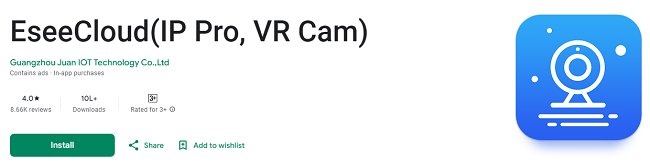
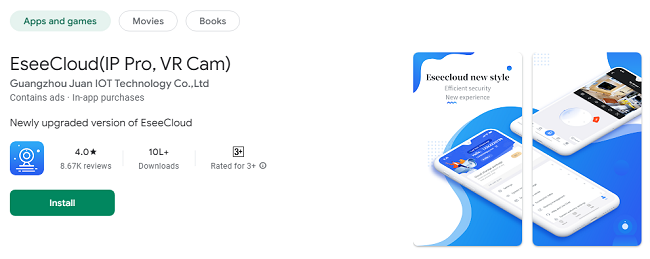
Before you can start monitoring your security cameras, you need to download the EseeCloud app onto your mobile device. Here’s how to do it:
1. For Android Users:
Open the Google Play Store on your Android device.
In the search bar, type EseeCloud.
Tap on the Install button next to the app to download it.
2. For iOS Users:
Open the App Store on your iPhone or iPad.
Search for EseeCloud in the search bar.
Tap the Get button to download and install the app.
Once the app is installed, open it and proceed with setting up your account.
Setting Up the EseeCloud App for Monitoring
After downloading the app, you’ll need to set up your EseeCloud account and connect your security cameras. Here’s a step-by-step guide to get started:
Step 1: Create an EseeCloud Account
Launch the EseeCloud app.
If you don’t already have an account, tap Register and enter your details (email, username, password).
You may need to verify your email before proceeding.
Step 2: Add Your Security Cameras
To begin monitoring, you’ll need to link your cameras to the app. This can be done in several ways:
QR Code: Most cameras have a QR code that can be scanned directly using the app. Open the app, select Add Device, and scan the QR code on your camera.
Manual Entry: If your camera doesn’t have a QR code, you can manually enter the camera’s ID and password.
Device Pairing: Follow the on-screen prompts to pair your camera with the EseeCloud app. Ensure your camera and smartphone are connected to the same Wi-Fi network during this process.
Step 3: Connect to Your Cameras
Once your camera is successfully added to the app, you can view the live video feed. Simply tap on the camera in the app’s dashboard, and it will stream the video in real-time. From here, you can access various settings to customize how you monitor your cameras.
Key Features of the EseeCloud App for Monitoring Security Cameras
The EseeCloud app offers several features to help you monitor your security cameras more effectively. Here’s an overview of the most important features and how to use them.
1. Live Video Streaming
One of the primary functions of the EseeCloud app is live video streaming. You can access real-time footage from your security cameras anytime, anywhere, as long as your device has an internet connection.
Accessing Live Feed: Tap on a camera from the main dashboard to begin viewing the live stream. You can adjust the video resolution to fit your internet speed, ensuring smooth playback without buffering.
Multiple Camera Viewing: If you have multiple cameras, you can view live footage from all your cameras at once by switching between them or using the multi-screen feature (if supported).
2. Motion Detection Alerts
EseeCloud features motion detection technology that sends you instant alerts whenever movement is detected in the camera’s field of view.
Setting Up Motion Detection: Go to the settings of your camera in the app and enable motion detection. You can adjust the sensitivity levels to suit your needs—whether you want to be alerted by every small movement or only significant motion.
Push Notifications: When motion is detected, the app will send push notifications to your phone. You can customize the types of alerts you wish to receive, such as real-time alerts for critical events.
3. Remote Control of PTZ Cameras
If you’re using PTZ (Pan-Tilt-Zoom) cameras, the EseeCloud app allows you to remotely control the camera’s position.
Panning and Tilting: Use on-screen controls to pan (move horizontally) or tilt (move vertically) the camera to adjust its view remotely.
Zooming: You can also zoom in or out to get a closer look at specific areas, making it easier to monitor larger spaces or focus on specific objects.
4. Cloud Storage for Video Recordings
EseeCloud allows you to store video footage in the cloud for secure, easy access. This means that even if your camera’s local storage is damaged or your SD card fails, your recordings will remain safe.
Setting Up Cloud Storage: Go to the settings menu in the app and select a cloud storage plan. You’ll typically have the option to choose between different subscription plans, depending on how much storage you need.
Accessing Recorded Footage: You can access your recordings by navigating to the Playback section of the app. This lets you view, download, or share recordings from specific dates and times.
5. Two-Way Audio
EseeCloud supports two-way audio, which is useful for communication through cameras that are equipped with a microphone and speaker.
Speaking Through the Camera: Tap the microphone icon on the live feed screen to speak through your camera’s speaker.
Listening to Audio: You can listen to sounds from the camera’s environment by tapping the speaker icon, which is especially helpful for monitoring conversations or ambient sounds.
6. Playback and Video Search
If you need to review footage from the past, EseeCloud’s playback feature makes it easy to search for and view recorded videos.
Video Search: The app allows you to search for video clips based on date and time. This is especially useful if you need to review footage after an event, such as a break-in or an incident.
Event-Based Playback: You can filter the footage based on specific events, such as motion detection or alarm triggers, to quickly locate important videos.
Tips for Optimizing Your Security Camera Monitoring with EseeCloud
To get the most out of your EseeCloud app and ensure the highest level of security, here are some tips:
1. Maintain a Strong Internet Connection
Since the EseeCloud app relies on an internet connection for live streaming and video playback, make sure both your camera and mobile device are connected to a stable and fast internet connection. If you're experiencing lag or buffering, consider improving your Wi-Fi signal or using a mobile hotspot.
2. Enable Notifications for Critical Events
Make sure to set up push notifications for motion detection, camera disconnection, or other important events. This will help you stay informed in real-time, allowing you to act quickly if something suspicious happens.
3. Regularly Review Footage
Even with motion detection alerts, it’s important to periodically review recorded footage, especially if you’re managing a business or monitoring large areas. Use the Playback feature to go through past recordings and ensure no important events have been missed.
4. Set Up Cloud Storage for Backup
While local storage (such as an SD card) is useful for keeping recordings, it’s always a good idea to back up footage to the cloud. This ensures that your recordings are safe even if your camera or SD card is damaged or stolen.
5. Customize Your Camera Settings
EseeCloud allows you to fine-tune your camera’s settings, including motion detection sensitivity, video quality, and storage preferences. Customizing these settings ensures you’re getting the most out of your surveillance system.
Conclusion
Monitoring your security cameras using the EseeCloud app is a simple, effective way to keep your property safe and secure. Whether you’re monitoring your home or business, the app offers a variety of powerful features like live streaming, motion detection alerts, two-way audio, cloud storage, and more, all accessible through your smartphone or tablet. By following the steps outlined in this guide and utilizing the app's features to their fullest, you can ensure that your security cameras are always providing reliable, real-time protection.
With EseeCloud, security has never been easier to manage. Stay connected, stay secure, and monitor your property from anywhere with the EseeCloud app.
Updates